Download HappyMod for Android and learn how its mod listings, working scores, version choices, download manager and community features work before you install anything.
HappyMod is an Android marketplace used to browse alternative and modified builds of games and apps. Instead of presenting one developer-published release for each title, a listing may contain several community-uploaded versions with different changes. One build might focus on removing ads, another may alter in-game resources, and another may simply preserve an older version that still works on a particular device.
The useful part of HappyMod is not the word “MOD” by itself. It is the information around each build: the version, the stated modification, community feedback, working percentage, comments and the availability of other uploads for the same title. Those details help users compare options before downloading rather than treating every modified APK as interchangeable.
HappyMod is different from Google Play. Files obtained through a third-party marketplace do not come with the same Play Store distribution path or review process. That makes package identity, signatures, permissions, Android warnings and file hashes more important. A high working score can suggest that a modification functions for other users, but it is not a malware scan and should never be treated as one.
Those choices raise three different questions that are easy to mix together: Does this build do what it claims?Will it install on this device? and What can be verified about the file itself? A working score can help with the first question, Android compatibility affects the second, and hashes, package identity, signatures and scan results help with the third.
Current release
HappyMod Latest Version
The version currently offered on this website is v3.4.6. A newer version number is not automatically better for every device. Updates can change compatibility, app behavior, interface elements or package details, which is why older releases remain useful for troubleshooting when a current build does not work correctly.
What Is New in v3.4.6?
Version information should be based on verified release details rather than copied claims. This site does not invent a changelog. When reliable release notes for a build are available, they can be added here. Until then, treat the version number as file-identification information and verify the exact APK before installation.
The central Latest Version setting keeps the same release number consistent across the homepage, download page, buttons, metadata and old-version archive.
Most reasons come down to choice. A conventional app store usually presents the current developer release, while HappyMod can expose modified builds, earlier versions and several alternatives for the same title.
The useful part is the information around those choices. Before downloading, users can compare the base app version, MOD description, working percentage, recent comments and other available builds. That makes HappyMod more useful as a comparison tool than as a blind download button.
Compare several MOD variants for one app or game.
Check older versions when a newer build creates a compatibility problem.
Use community feedback to see whether a specific MOD is still functioning.
Read MOD parameters before choosing a file.
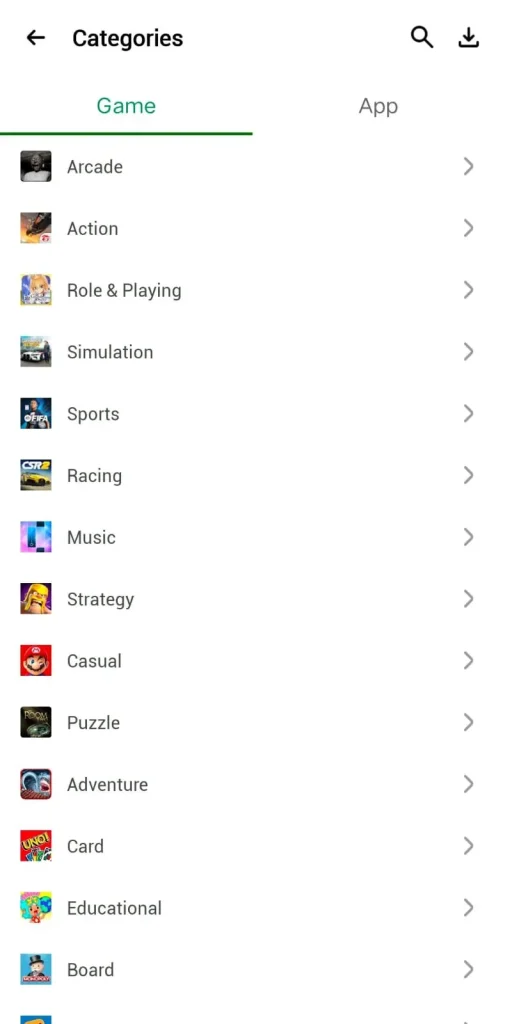
Use search, categories and version details to narrow a large catalog.
See before you tap
Inside the HappyMod Interface
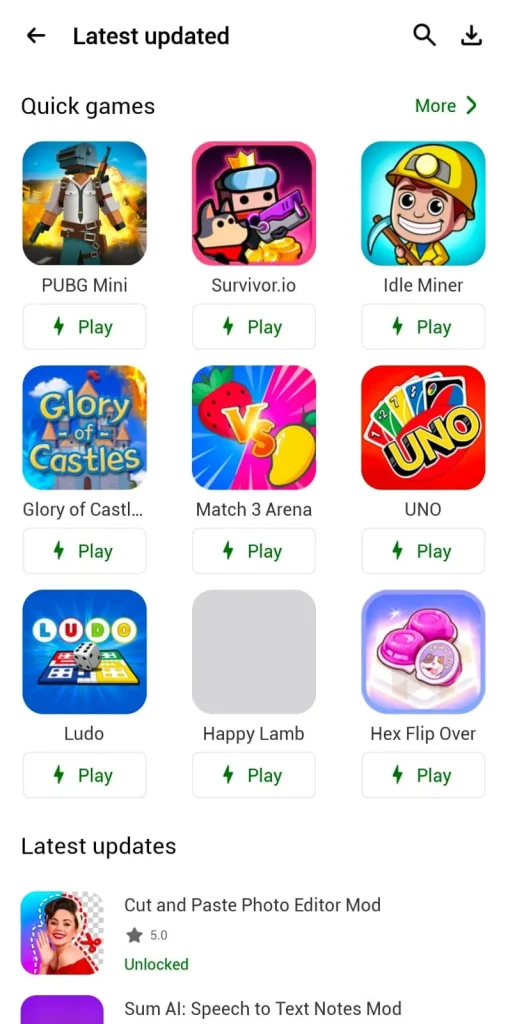
The most useful screens are the ones that help you move from discovery to a specific build: browse or search, open the listing, read the MOD parameters, compare versions and then check feedback before downloading.
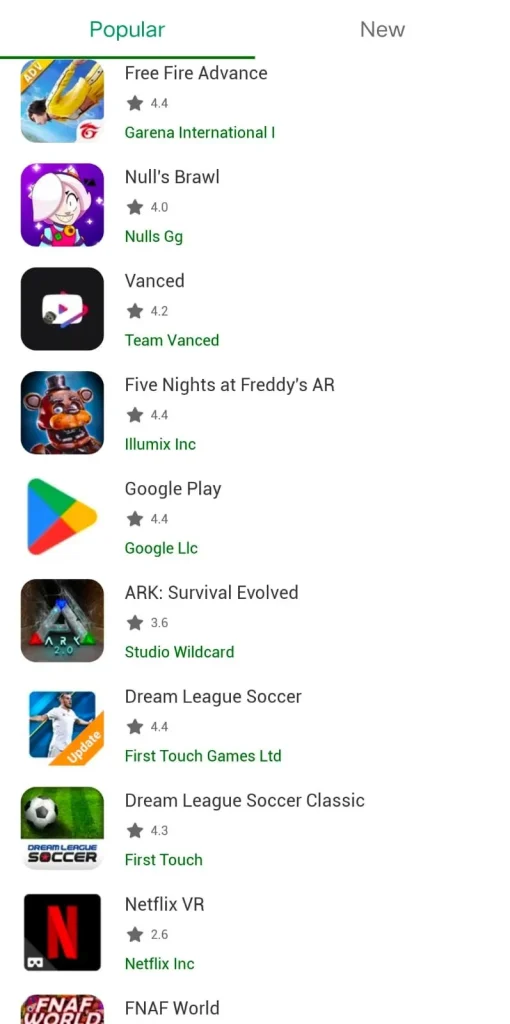
Browse: start from games, apps, new releases, trending items or categories.
Compare: open a title and check which modified builds are available rather than assuming there is only one.
Read: use the MOD description, working score and recent comments together before choosing a file.
What the app can help you do
Incredible HappyMod Features Worth Knowing
Feature availability can change between HappyMod releases and individual listings. The cards below focus on functions commonly documented in recent builds rather than promising that every MOD includes every option.
App and Game Search
Search helps you move directly to a known game or app instead of scanning a large catalog. When several results use similar names or icons, open the listing and compare the base version, MOD description and publisher information before choosing a file. Search finds candidates; it does not verify them.
Category Browsing
Categories make discovery easier when you do not have one exact title in mind. Games, utilities and other Android software can be explored by type, which is useful for finding alternatives. Treat a category position as navigation only; popularity or placement does not establish compatibility, safety or MOD quality.
Separate Games and Apps
HappyMod separates game-oriented listings from general Android apps so users can browse according to what they need. This distinction matters because game MODs often focus on resources, levels or gameplay, while utility-app modifications may involve ads, premium functions or older compatible builds.
New and Trending Views
Recent and popular views can surface active uploads and titles receiving attention from the community. They are useful for discovery and for spotting frequently updated listings, but they should never replace file-level checks. A trending build can still be incompatible with your device or different from the modification you want.
Multiple MOD Versions
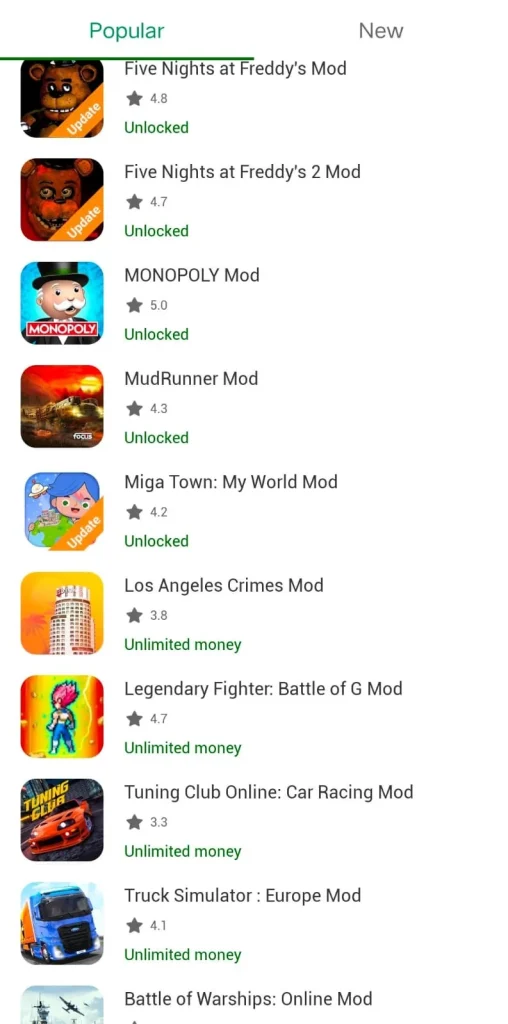
A single title can have several modified builds rather than one universal download. Different uploads may target different app versions, unlock different functions, use different signers or behave differently after an update. Compare the MOD description, version number, working feedback and recent comments before choosing among variants.
MOD Parameters and Change Details
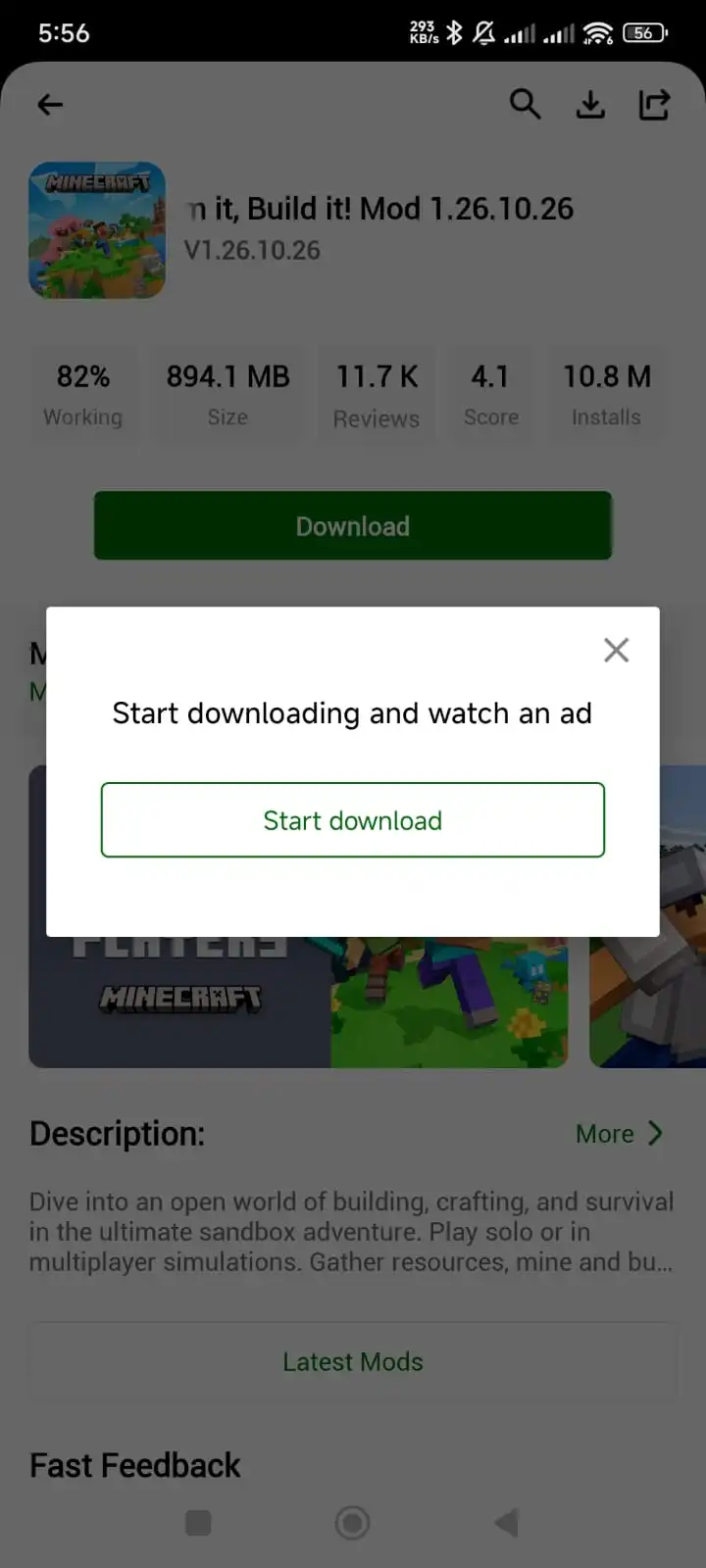
The MOD description is where a listing explains what a specific build is intended to change. Read it carefully before downloading because labels such as “MOD APK” are too broad to tell you whether the file changes ads, resources, premium features, gameplay or something else.
Working Percentage
Community votes can create a working percentage for a particular upload. That score is useful when several variants exist because it reflects whether users report the advertised modification functioning. Give more weight to recent, well-supported feedback, and remember that functionality is not the same thing as malware or privacy safety.
Comments and Replies
Recent comments can add context that a percentage cannot. Users may report crashes, login problems, device-specific failures, broken MOD functions or success on a particular game version. Read the newest relevant comments and look for repeated patterns instead of assuming one positive or negative report represents every device.
Ratings and Community Votes
Ratings and votes provide another layer of community feedback around a listing. They are most useful when combined with version information, the working percentage and comments. A strong rating can suggest broader testing, but it is still subjective feedback rather than a technical inspection of the APK.
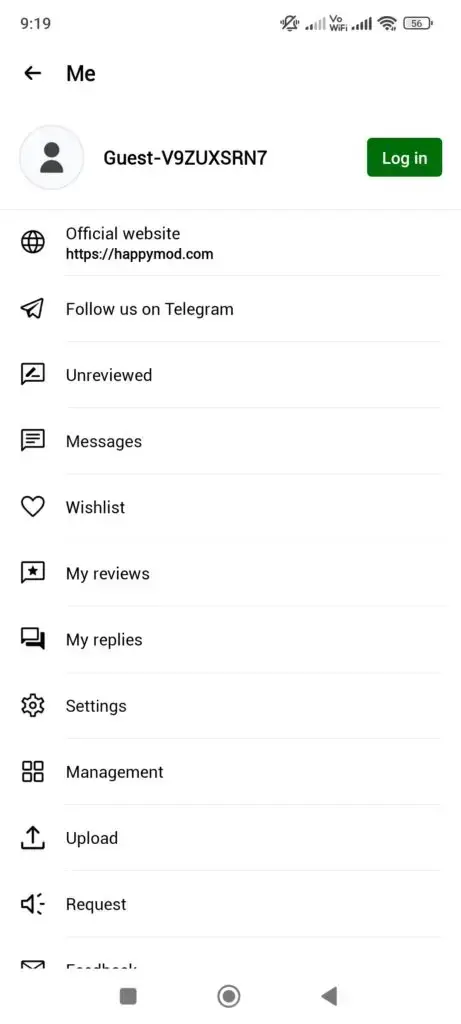
Browsing Without an Account
Basic browsing and access to listings can be separated from community actions, so users are not forced to create an account simply to understand what is available. Features such as posting, replying, rating or requesting a MOD may use account functionality depending on the HappyMod build and service configuration.
Community Participation
HappyMod includes community-oriented signals around MOD listings rather than treating each file as an isolated download. Votes, comments and replies can help identify whether a modification still works after an original game update. Use community reports as practical evidence, but verify the exact file separately.
Request a MOD
When a title or desired modification is missing, a request feature can let users describe what they are looking for. A clear request should identify the app or game, base version and desired change. Submitting a request does not guarantee that a compatible MOD will be created or delivered on a schedule.
Built-In Mini-Games
Recent HappyMod releases have been documented with lightweight mini-games inside the app. These provide quick entertainment without first downloading a large external game package. Mini-game availability can change between HappyMod versions, so treat the feature as build-dependent rather than something guaranteed in every historical release.
Version History
Older uploads can remain useful when a newer release breaks a modification, raises the Android requirement or stops working on a particular device. Version history gives users a rollback reference, but an older build should still be checked for package identity, signer continuity and compatibility before installation.
Access to Older Builds
Archived releases are useful when the newest build is not the best fit for an older phone or a specific MOD. The goal is not to stay outdated indefinitely; it is to choose the most recent version that solves the compatibility problem, then return to a newer release when the issue is fixed.
In-App Downloads
HappyMod can start APK downloads from inside the app rather than sending every listing through a separate web browser. That creates a more direct workflow, but Android still treats the downloaded package as software from outside Google Play. File verification and the final install decision remain separate steps.
Download Manager
A central download manager helps keep active transfers, completed APKs and installed items easier to distinguish. It is the first place to check when a download appears to disappear or when you are unsure whether the same file was already downloaded. Clearing obsolete installer files can also recover storage space.
Pause and Resume Downloads
Where the current build supports it, pausing and resuming can be useful for larger APKs or unstable connections. Resuming is convenient only when the completed file is intact, so compare the final size or checksum where available instead of assuming a resumed transfer is automatically complete.
Installed App View
Download-related screens can help separate software that is still downloading, a package that has finished, and an app already installed on the device. That distinction reduces duplicate transfers and makes troubleshooting easier because you can identify whether the problem happened during download, installation or first launch.
Android Installer Handoff
After a package finishes downloading, HappyMod can hand the APK to Android’s normal installation flow. Android—not HappyMod—controls the final install prompt, source permission and signature checks. Read those prompts rather than treating the handoff as automatic approval to install.
Split-Package Awareness
Some Android apps use multiple package components or formats such as APKS and XAPK instead of one standalone APK. Support depends on the file and installer being used. If Android cannot parse a bundle, identify the format first rather than renaming the file or repeatedly changing security settings.
Update Awareness
Updated listings can make it easier to notice when a newer app or MOD build becomes available. Before replacing an installed copy, compare the new base version, MOD description and signer. A newer number does not guarantee that the same modification still works or that Android will accept an in-place update.
Refreshed MOD Listings
Modified builds often need changes after the original app or game updates. A refreshed listing can address broken functions or compatibility problems, but it should be evaluated as a new file. Do not transfer trust, working results or security conclusions from an older APK to a replacement automatically.
Sorting and Filtering
Sorting by recency, popularity or other available signals can make large result sets easier to narrow. Filters help prioritize what to inspect first, but they are not quality certificates. Open the listing and read the exact build details before deciding which file matches your device and intended modification.
Screenshots and Listing Details
Screenshots and descriptive fields help confirm that you are looking at the intended title and show what the app or game interface is expected to resemble. They are useful orientation tools, but screenshots can be reused, so pair visual identification with package, version and MOD information.
Choice Between MOD Variants
When several MODs exist for one title, users can choose the variant that matches the change they actually want instead of downloading the first result. Compare each variant separately because unlimited resources, ad changes, unlocked content and menu controls are different modifications with different compatibility histories.
Android Sharing Options
Listings or downloaded files can be shared through Android’s normal sharing tools when that functionality is available. If you share an APK, include the exact version and source information so the recipient can identify what they received. Sharing a file does not preserve its trust context automatically.
Feedback Before Downloading
The strongest pre-download decision uses several signals together: MOD parameters, version information, working percentage, recent comments and device compatibility. No single number tells the whole story. Reading those details together helps distinguish a well-understood build from one with little useful evidence.
Night Mode
Recent HappyMod builds are commonly documented with a darker browsing interface for low-light use. Night mode changes presentation rather than the APK files being downloaded. It has no effect on whether a MOD is compatible, whether a working score is reliable or whether a package should be trusted.
Build-Specific Information
Each upload can have its own base version, modification details, working history and technical identity. That build-specific information is more useful than a generic promise that “HappyMod works.” Always make decisions about the exact file and version you plan to install rather than the marketplace name alone.
From search to install
How HappyMod Works
Using HappyMod is easier to understand when the process is separated into decisions rather than treated as one download button.
1
Find the title
Search directly or browse games, apps, categories, new listings and trending items.
2
Open the listing
Check the base app version and the modification described for each available build.
3
Compare feedback
Read the working percentage, ratings and recent comments for the specific upload.
4
Download the build
Use the in-app download flow and keep enough storage for the package and installed app.
5
Review the install
Let Android show the install prompt, then evaluate permissions and warnings before proceeding.
Read the exact listing
Popular HappyMod MOD Options and What They Change
“MOD APK” is a broad label, not one specific modification. Different uploads may change different parts of an app or game, and a title can have more than one variant available at the same time.
Common descriptions include unlimited in-game resources, unlocked levels or items, premium-feature changes, ad changes, menu-based controls and older versions preserved for compatibility. Some listings may combine several changes; others make only one.
The safest assumption is that a modification exists only when the listing explicitly says it does. Do not infer “unlimited money,” “premium unlocked,” or “no ads” simply because a file appears on HappyMod.
MOD MenuUnlimited ResourcesUnlocked ContentAd ChangesPremium Feature ChangesFree Purchase VariantsOlder Compatible BuildsGameplay ChangesSpeed or Progress ChangesCustom Variants
Current installer
How to Download HappyMod v3.4.6?
Before the transfer starts, compare the version, package name, file size and Android requirement with the values published for the current build.
01
Check the build details
Confirm that the page shows the version you actually intend to download. If a hash is published, keep it available for comparison after the file arrives.
02
Start the APK download
Use the download button and allow the transfer to finish. A partial APK can produce a parse error or fail during installation.
03
Open the completed file
Use your browser Downloads list or Android file manager. If the file name or extension is unexpected, stop before installing it.
04
Move to Android installation
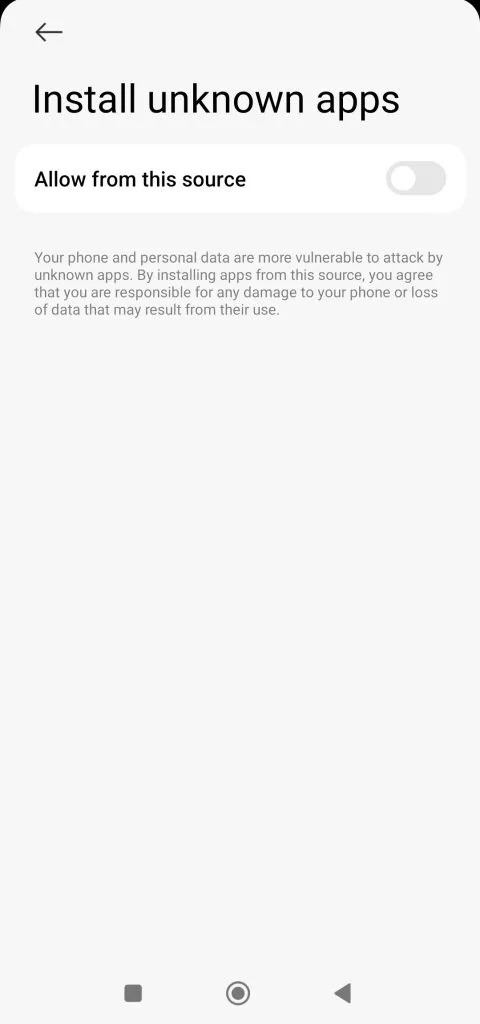
Android may require permission for that browser or file manager to install an app from outside Google Play. Grant only the source you are using.
Android versions and phone brands use different wording, but the logic is the same: the app came from outside Google Play, so Android asks which source is allowed to open the installer.
01
Finish the download first
Do not attempt installation from an incomplete file. If the download was interrupted, restart it and compare the resulting size or checksum where possible.
02
Open the APK from the source you used
This may be Chrome, another browser, or a file manager. Android tracks install permission per source on modern versions.
03
Allow “Install unknown apps” only for that source
Samsung, Pixel, Xiaomi, Oppo and other brands place the switch in slightly different menus. Avoid enabling unrelated apps just to make the prompt disappear.
04
Return to the installer
Review the app name and Android prompt. If the package conflicts with an existing installation, investigate before uninstalling anything that contains data you need.
05
Open HappyMod and review requests
Grant permissions only when they match a function you are using. A request for unrelated sensitive access is a reason to stop and investigate.
06
Turn install permission back off if you prefer
If you enabled an install-source permission only for this task, Android lets you disable it again afterward without removing the installed app.
Functionality signal
What the HappyMod Working Percentage Actually Means
A working percentage is based on community feedback about whether a particular modified build functions. It can be useful when several uploads exist for the same game because it gives you one more way to compare them before downloading.
Read the percentage together with the number and recency of votes or comments. A very high score based on little activity is not as informative as a well-tested build with recent reports from users running the current game version.
Most importantly, working does not mean safe. A build can install, launch and deliver the promised modification while still containing code you would not want on your phone. Functionality feedback and file-security checks answer different questions.
HappyMod’s download workflow is useful because it keeps the file state visible after you leave a listing. Depending on the build, the manager can separate active downloads, completed files and installed items so you can tell whether a package is still transferring or is already waiting for installation.
This is also where storage hygiene matters. An APK can remain on the device after the corresponding app is installed, so a long history of large game downloads can consume space even when the apps themselves appear to be the only thing installed.
If a download seems to vanish after you tap the button, check the manager before downloading it again. The file may already be in a completed state rather than lost.
The same characteristics that make a third-party MOD marketplace useful also create the reasons to be more careful with it.
Pros
Several modified builds can be compared for the same title.
Working percentages and recent comments add practical user feedback.
Older versions can help when a new release is incompatible or breaks a MOD.
Search, categories and sorting make a large catalog easier to navigate.
Core browsing and downloading do not need to revolve around account creation.
Requests and community discussion can surface demand for missing modifications.
The in-app download workflow keeps downloads easier to track than scattered browser files.
Cons
Third-party and modified APKs carry more trust and provenance questions than Play Store releases.
A working score measures functionality, not malware or privacy risk.
Updates can break MOD behavior or create signature conflicts with an installed version.
Modified online games can create account-ban or terms-of-service risk even when the file is not malicious.
Different uploads for the same title may be signed by different parties.
Android may require extra install-source permissions because the file is outside Google Play.
Community claims should still be checked against the exact file and version you plan to install.
Different stores, different jobs
HappyMod vs Google Play, APKPure and Uptodown
The most useful comparison is not “which is best?” It is which service matches the kind of file, review process and version access you need.
Area
HappyMod
Google Play
APKPure
Uptodown
Primary focus
Modified and alternative Android builds
Developer-published apps and games
APK distribution and version access
Software/APK distribution and version history
MOD variants
Core part of many listings
Not a normal Play Store use case
Not the main focus
Not the main focus
Community working score
Common HappyMod listing signal
No equivalent MOD-working score
Different review model
Different review model
Older versions
Can be available per listing
Generally prioritizes current developer release
Version history is a major feature
Version history is a major feature
Install source
Outside Google Play
Google Play infrastructure
Outside Google Play
Outside Google Play
Best fit
Comparing modified builds and community feedback
Mainstream developer releases and Play services
Direct APK/version access
Software history and APK downloads
Store policies, file availability and review processes change. Compare the exact app and version rather than assuming every file on one platform follows the same history.
HappyMod Pro is a popular search phrase, but users should not automatically assume that every website using the term is describing a separate official edition. The word “Pro” is often used on APK websites as a marketing label for premium, unlocked, modified or enhanced software.
When a page is labelled “HappyMod Pro,” compare the actual version number, package information, source, file identity and changelog instead of relying on the word “Pro.” If two pages advertise HappyMod and HappyMod Pro but provide the same version and APK, the names may simply describe the same application differently.
Choose by purpose
HappyMod Alternatives
No single app platform is best for every purpose. Google Play is the natural choice for official developer releases and Google ecosystem updates. APKPure and Uptodown are better known for broad APK distribution and version archives, while APKMirror is commonly used for archived signed releases of Android applications. Aptoide operates as an alternative Android marketplace.
HappyMod differs because modified builds, MOD parameters and community functionality feedback are central to the experience. Choose a platform according to the type of file you need rather than because one site claims to be universally better.
No honest review can prove an Android package is “100% safe” forever. A better process checks the exact file, records technical identifiers and explains what each test can and cannot establish.
For the HappyMod installer, record the package name, byte size, SHA-256 hash, signing information where available, scan date, Android test environment and any warnings shown during installation. For a MOD downloaded inside HappyMod, repeat the evaluation for that individual file rather than transferring trust from the marketplace app to everything it distributes.
A SHA-256 match confirms that two files are identical. It does not tell you whether that file is benign. Antivirus results can detect known threats but are not a guarantee against every harmful behavior. Permission review and source history still matter.
Confirm the base game version, read the MOD parameters, compare recent comments and try a different compatible variant rather than reinstalling the same file repeatedly.
HappyMod is distributed as an Android APK. That makes Android phones and tablets the normal environment. Other platforms require a different approach, and some cannot run an APK natively at all.
Android phones & tabletsNative APK environment. Check the minimum Android version for the build you are installing.
ChromebookPossible only on models that support Android apps and the relevant sideloading workflow.
Windows PCRequires an Android emulator or other Android environment; there is no need for a separate “HappyMod.exe”.
MacRequires an Android environment rather than a native macOS DMG version.
iPhone / iPadAndroid APK files do not install natively on iOS or iPadOS.
Previous releases
HappyMod Old Versions
The current release listed here is v3.4.6. An older HappyMod APK can be useful when a newer build raises the Android requirement, changes behavior on a particular phone or creates an update conflict with an existing installation.
Before rolling back, compare the old build’s Android requirement, package identity and signer with your installed copy. Back up anything you need first, because resolving a signature conflict can require uninstalling the existing app and removing its local data.
Open a question to see the answer. More detailed guides are linked where a short answer would leave out important context.
What is HappyMod?
HappyMod is an Android marketplace used to browse alternative and modified versions of games and apps. Listings can contain several builds with different MOD parameters, versions and community feedback.
Is HappyMod the same as Google Play?
No. Google Play primarily distributes developer-published releases through Google’s store infrastructure. HappyMod is associated with third-party and modified APKs, so file source, signatures, permissions and Android warnings deserve more attention.
What does the working percentage mean?
It is a community functionality signal for a particular upload. It can help compare MOD builds, but it does not prove that the file is malware-free or privacy-safe.
Why are there several MODs for the same game?
Different contributors can modify different features or target different base versions. Read the MOD parameters and version information for the exact build you are considering.
Do I need an account just to browse?
Core browsing and downloading are commonly available without an account. Community actions such as commenting, rating or requesting a MOD may require sign-in.
Can I install HappyMod on an iPhone?
No Android APK installs natively on iOS or iPadOS. A site offering an APK as a direct iPhone installation is describing a technically different process or a misleading download.
Can I use HappyMod on a PC?
Yes, but through an Android environment such as an emulator. The APK is still an Android app; it does not turn into a native Windows EXE or macOS DMG.
Why does Android say “App not installed”?
Common causes include insufficient storage, Android incompatibility, an incomplete file or a signature conflict with another app using the same package name.
What is a SHA-256 hash used for?
SHA-256 is a fingerprint of the file contents. Matching the published value confirms that your file is identical to the checked file, but it does not by itself prove the file is harmless.
Should I install the MOD with the highest working score?
Use the score as one input, then read the MOD parameters, recent comments, app version and device compatibility. A higher score is not a substitute for checking what the file actually changes.
Does HappyMod automatically make every paid feature free?
No. MOD behavior is build-specific. Only rely on the changes stated for the exact listing and version you are considering.
How do I know which HappyMod version I have?
Open Android Settings, find HappyMod in the Apps list and view its app details, or check the version information inside the app if the build exposes it.
Conclusion
HappyMod is most useful when it is treated as a catalog of individual Android builds rather than as a promise that every MOD will behave the same way. The practical advantage is choice: one title can have several variants, older releases may remain available, and community working feedback can help identify which upload is functioning for other users. The practical responsibility is equally important. Read the exact MOD description, compare the base app version, check recent comments, and make sure the file you downloaded is the one you intended to install.
The strongest way to use HappyMod is to separate convenience from verification. Search, categories, version choices and the download manager make finding a build easier; hashes, package identity, signing information, Android warnings and permission review help you decide whether that exact file belongs on your device. Keep the current HappyMod version and old-version archive available for compatibility problems, and use the troubleshooting pages when Android reports a parse error, signature conflict or failed installation instead of changing security settings at random.
Current build
HappyMod v3.4.6
Check the file details above, then use the download page if you need the full installation and verification steps.